Dockerfile
So far, we've used predefined images from Docker Hub. But what if we want to create our own image? That's where a Dockerfile comes in.
What is Dockerfile?
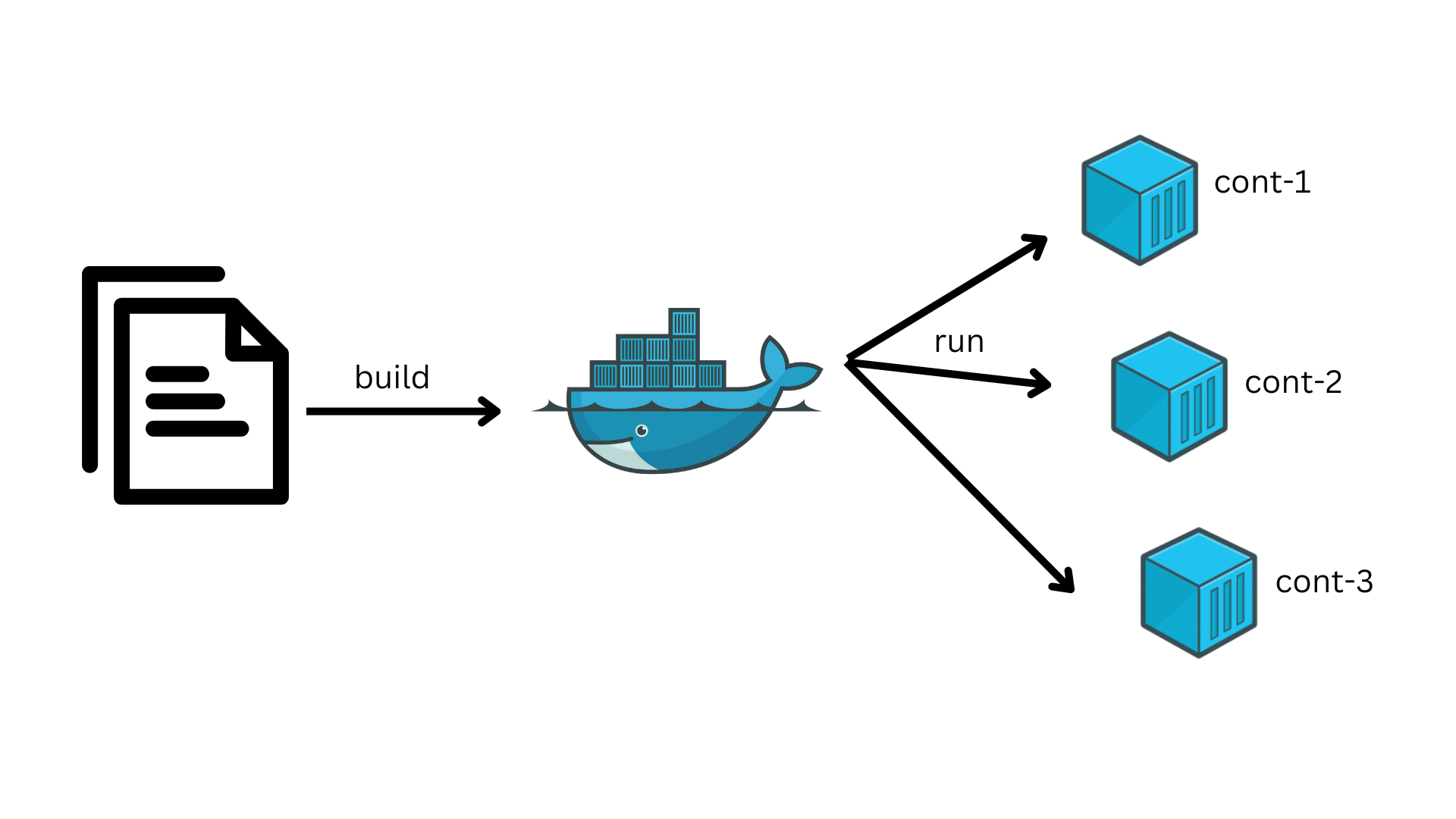
A Dockerfile is a simple text file that contains a script of instructions for building a Docker image. Each instruction in the Dockerfile adds a layer to the image. It is used to automate the creating of docker images.
Dockerfile Components
FROM : used to define the base images [ Ex: Ubuntu, Nginx, Tomcat, Mysql, Python]
COPY : Used to copy the files from Host to Container.
ADD : Used to copy the files from Host to Container and also it will download the files from IE and send those files to containers.
WORKDIR : used to set a default path in container [ WORKDIR /DEVOPS/APP]
RUN : Used to execute the commands while we creating the image
CMD : Used to execute the commands while we creating the container
ENTRYPOINT : Used to execute the commands while we creating the container
ARG : Used to pass the variables, these variables we cant access inside the containers
ENV : Used to pass the variables, these variables we can access inside the containers
USER : Used to run the commands trhough the separate user.
EXPOSE : Used to publish the port number.
LABEL : Used to define the description of the image
MAINTAINER : Used to provide author details of Dockerfile
- FROM
Description: Specifies the base image for building the Docker image. The base image can be any official image from Docker Hub or a custom image.
Example:
FROM ubuntu:20.04
This sets the base image to Ubuntu 20.04. All subsequent instructions in the Dockerfile will build upon this image.
2. COPY
- Description: Copies files from the host machine to the container. This is useful for transferring application code, configuration files, or scripts.
Example:
COPY index.html .
This copies the index.html file from the host machine to the current directory in the container.
3. ADD
Description: Similar to COPY, but also supports:
1. Extracting tar files.
2. Downloading files from a URL and adding them directly to the container.
Example:
ADD app.tar.gz /app/
ADD https://example.com/config.json /app/config.json
The app.tar.gz file will be extracted into /app/, and config.json will be downloaded and placed in the /app/ directory.
4. WORKDIR
- Description: Sets the working directory inside the container. All subsequent commands like RUN, CMD, or ENTRYPOINT will execute from this directory.
Example:
WORKDIR /usr/src/app
Sets /usr/src/app as the default directory for commands. For example, RUN touch janaki will execute in /usr/src/app.
5. RUN
- Description: Executes commands while creating the image (e.g., installing dependencies or updating the system).
Example:
RUN apt update -y && apt install -y python3
Updates the package list and installs Python3 in the image.
6. CMD
Description: Specifies the default command to run when the container starts. It is overridden if commands are passed during docker run.
Example:
CMD ["nginx", "-g", "daemon off;"]
Starts the NGINX server when the container runs.
7. ENTRYPOINT
- Description: Similar to CMD, but it’s not overridden by commands passed during docker run. It’s used to set a fixed main process.
Example:
ENTRYPOINT ["python3", "app.py"]
Always runs the app.py script using Python3 when the container starts.
8. ARG
- Description: Defines build-time variables. These variables cannot be accessed inside the running container.
Example:
ARG VERSION=1.0
RUN echo "Version: $VERSION"
VERSION is used during the build process, but it won’t be available in the running container.
9. ENV
- Description: Sets environment variables accessible inside the container.
Example:
ENV APP_ENV=production
Inside the container, the APP_ENV variable will be set to production.
10. USER
- Description: Specifies the user under which the container processes will run.
Example:
USER 1001
The container processes will run as user ID 1001.
11. EXPOSE
- Description: Informs Docker that the container will listen on a specific port. This doesn’t publish the port automatically; it’s a declaration for documentation and tooling.
Example:
EXPOSE 80
Declares that the container will use port 80.
12. LABEL
- Description: Adds metadata to the image, such as descriptions, versioning, or maintainer information.
Example:
LABEL maintainer="devops@example.com" description="A sample NGINX image"
Adds labels maintainer and description to the image metadata.
13. MAINTAINER
- Description: Specifies the author or maintainer of the image. Replaced by the LABEL instruction.
Example:
MAINTAINER devops@example.com
Declares the maintainer’s email.
Real-Time Scenario
Here’s an example of a Dockerfile for a Python web application:
FROM python:3.9-slim
LABEL maintainer="janakim@example.com" description="A simple Flask app"
WORKDIR /app
COPY requirements.txt /app/
RUN pip install -r requirements.txt
COPY . /app/
EXPOSE 5000
ENV FLASK_ENV=production
CMD ["python", "app.py"]
This Dockerfile:
Uses a Python base image.
Sets /app as the working directory.
Installs dependencies from requirements.txt.
Copies the app code to the container.
Exposes port 5000 for the Flask application.
Sets an environment variable FLASK_ENV.
Defines app.py as the entry point for running the container.
Conclusion
Dockerfile is a powerful tool for automating the creation of container images. Each instruction has a specific purpose, like defining the base image (FROM), copying files (COPY, ADD), running commands (RUN, CMD, ENTRYPOINT), and managing environment variables (ARG, ENV). By combining these instructions effectively, you can build lightweight, consistent, and portable containers tailored for your applications. Understanding these components is essential for DevOps engineers to streamline application deployment and management.